A terminal that remembers what you did.
Every command and its output, your saved scripts and notes, your files and your history, one keystroke away. Native to macOS, with no account, and nothing about what you run leaves your Mac.
For macOS 26 or later, on Apple silicon or Intel.
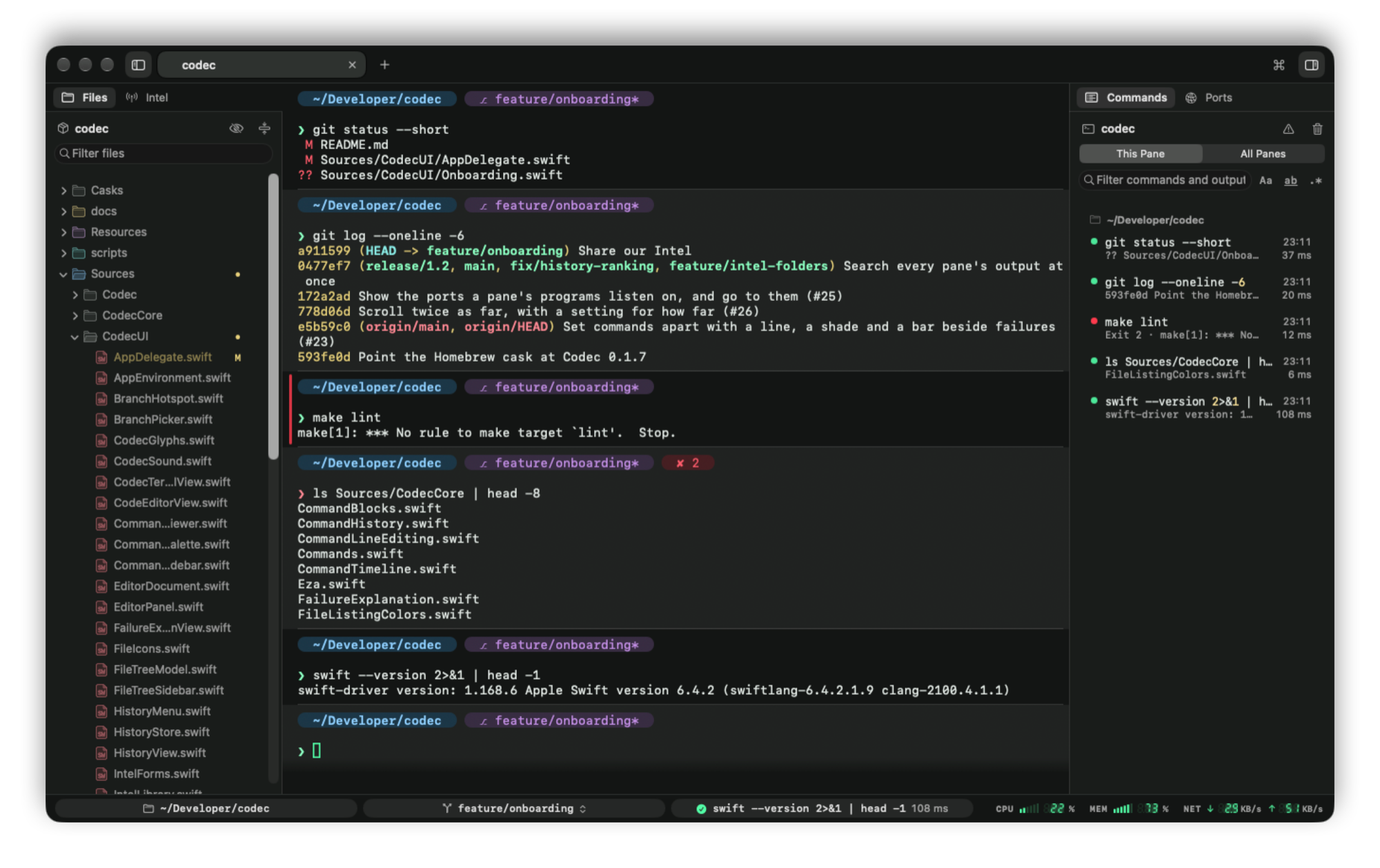
You ran a dozen things, went on for a while, and now you need what that build printed twenty minutes ago. Or the command you ran last Tuesday, in another folder, on another branch. Codec is built around that moment: it keeps track of what you run, where, and how it went, and puts it back in front of you without leaving the keyboard.
Every command, remembered ⇧⌘L
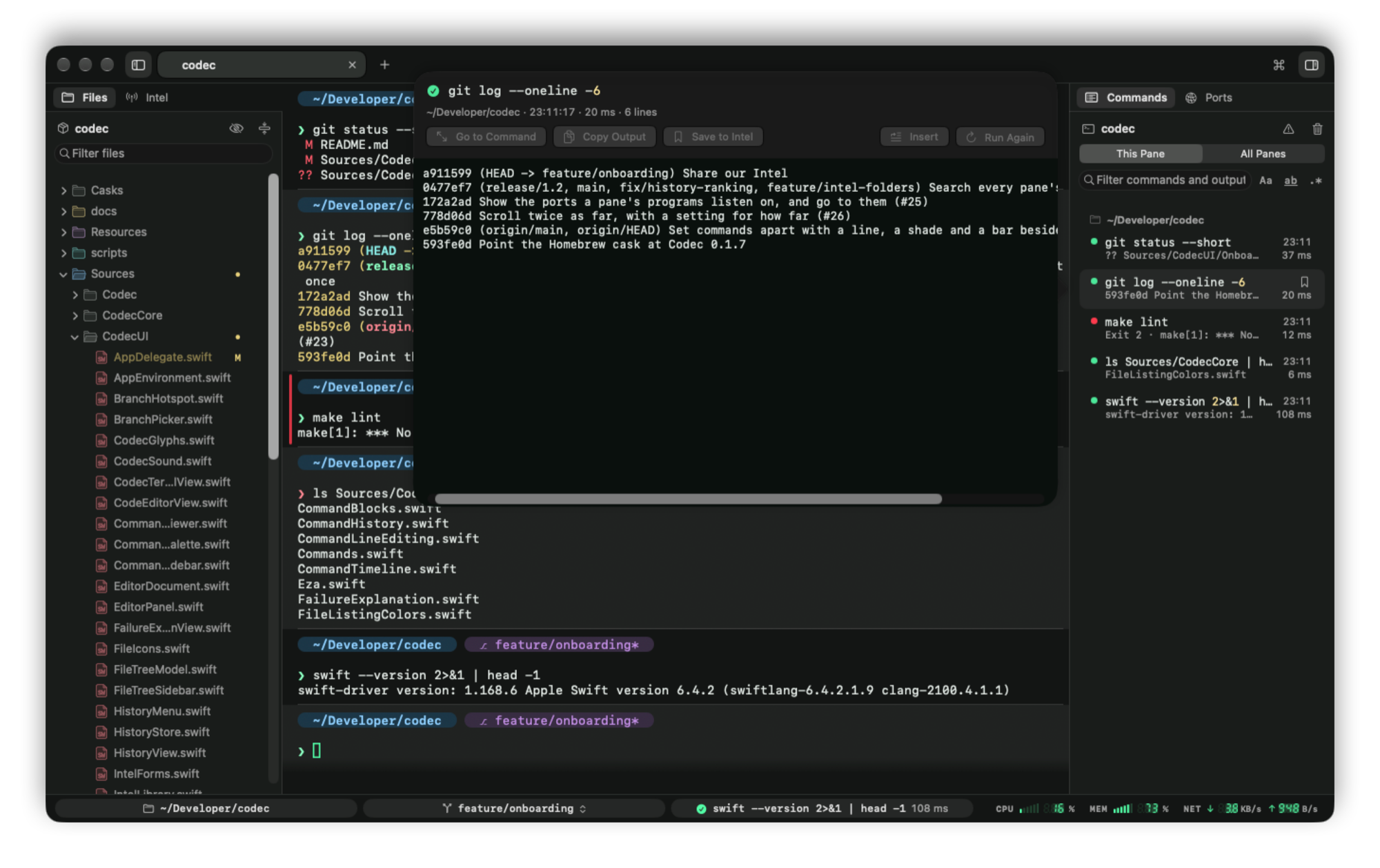
The Commands sidebar lists everything a pane ran, under the folder it ran in: whether it worked, how long it took, the last line it printed. Click one and the terminal scrolls back to it. Open its output to search it, copy from it or run it again, even after it scrolled out of the buffer, or you quit and came back the next day.
For the commands you run again and again, Codec knows how long they usually take: the build's progress shows on its tab while it runs, and Codec tells you when today's run is slower than usual.
Intel: the commands you keep coming back to ⇧⌘I
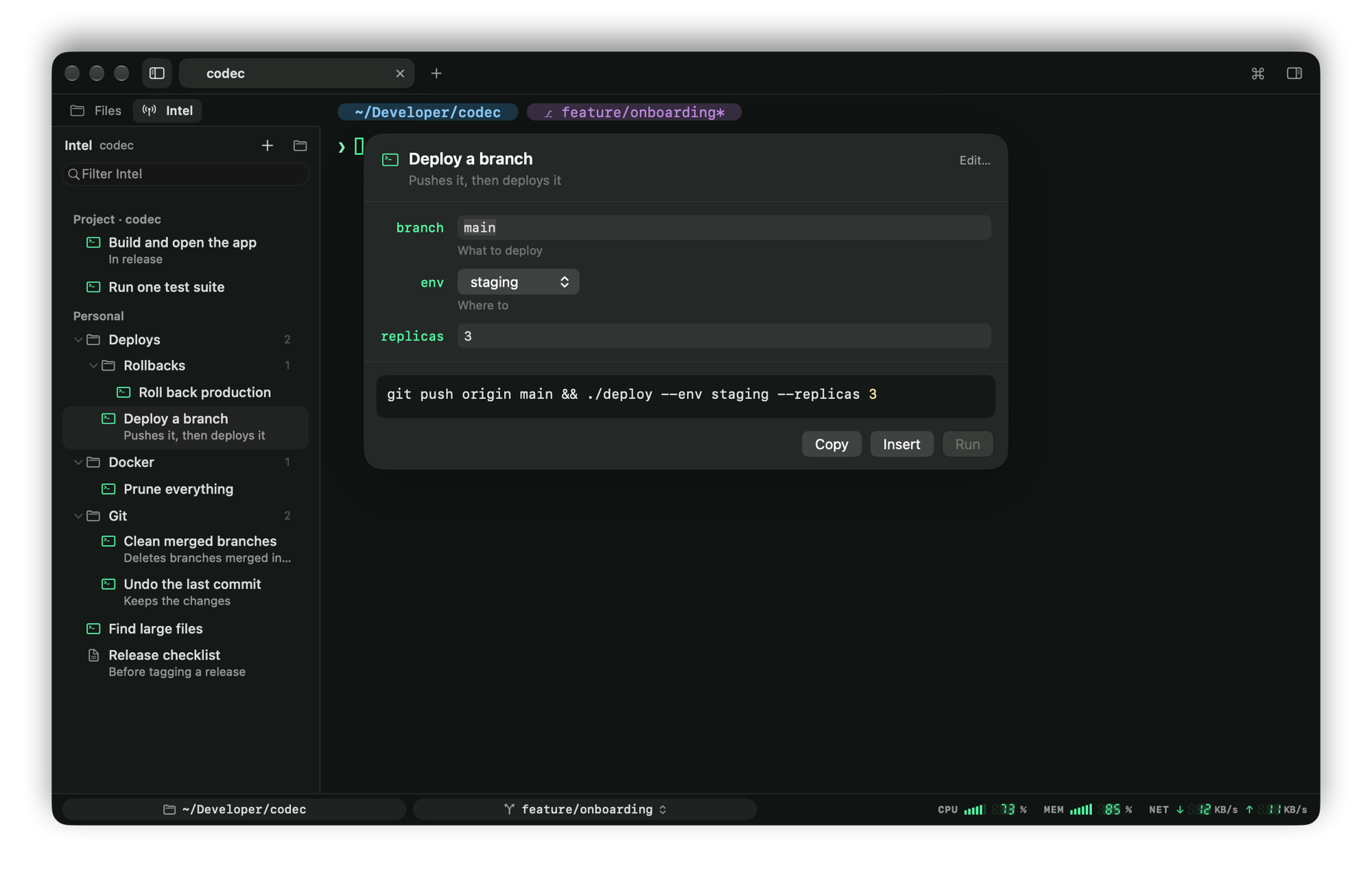
Save a command with the blanks left in, like {{branch}} or {{env}}, and run it next time from a form with defaults and choices. Saving one from the Commands sidebar spots the parts that tend to change and offers them as variables. Keep notes beside them as Markdown whose shell blocks run from the page.
It's plain Markdown in folders: yours in ~/.codec/intel, and your team's in the repository, committed and shared like the rest of the code.
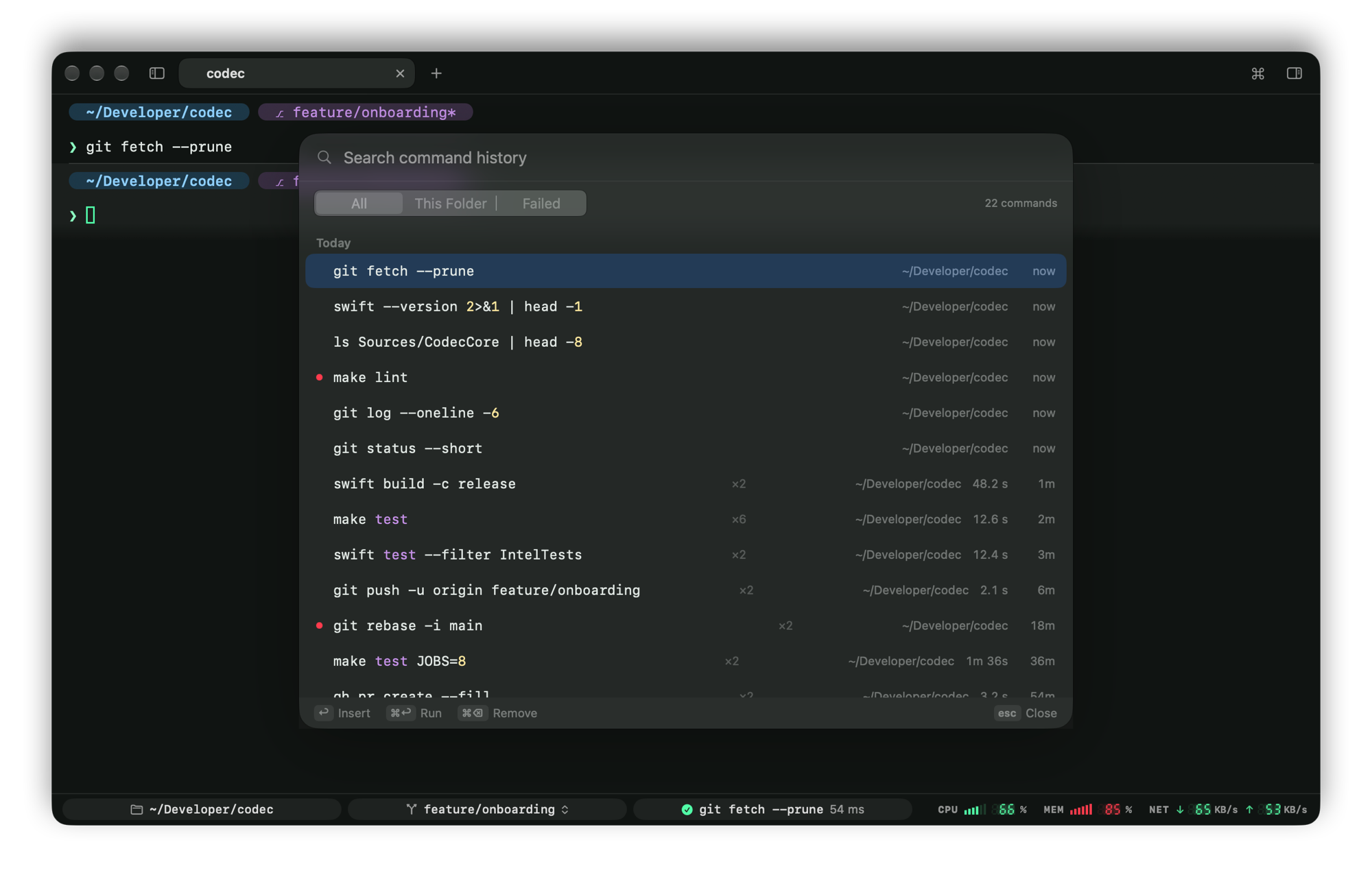
History that knows where you were ⌃R
↑ walks back through what you ran, as in any shell. The full search shows every command with the folder it ran in, how long it took and whether it failed, ranked by how well it matches, then by whether it ran here. As you type, the rest of your last matching command waits dimmed after the cursor.
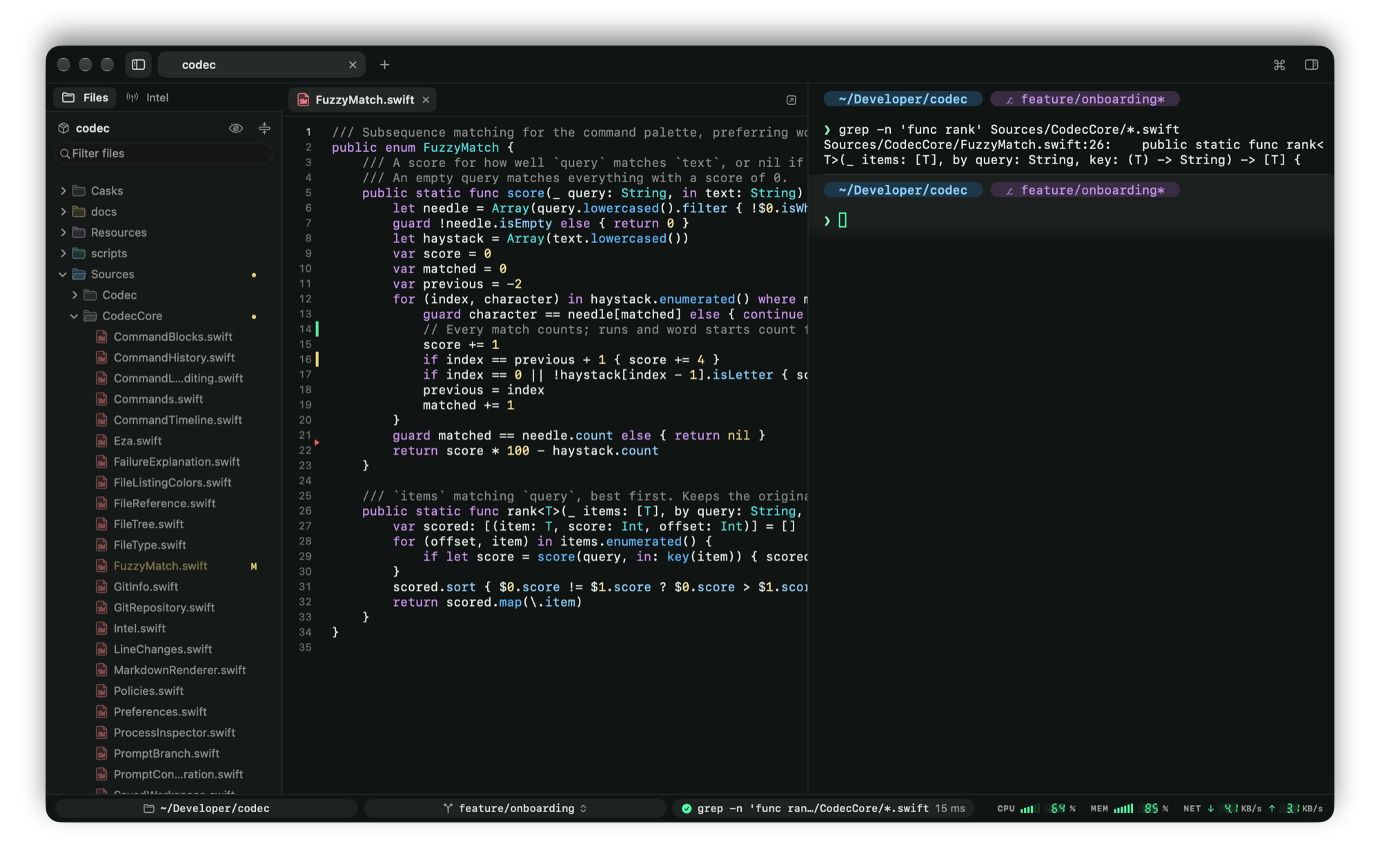
Your project beside the shell ⇧⌘E
The file tree follows you as you cd, colors files by git status, and fuzzy-finds any file in the project. Read and edit files beside the terminal, highlighted in twenty-odd languages. Markdown renders live, with Run buttons on its shell blocks, so a README becomes something you can click through.
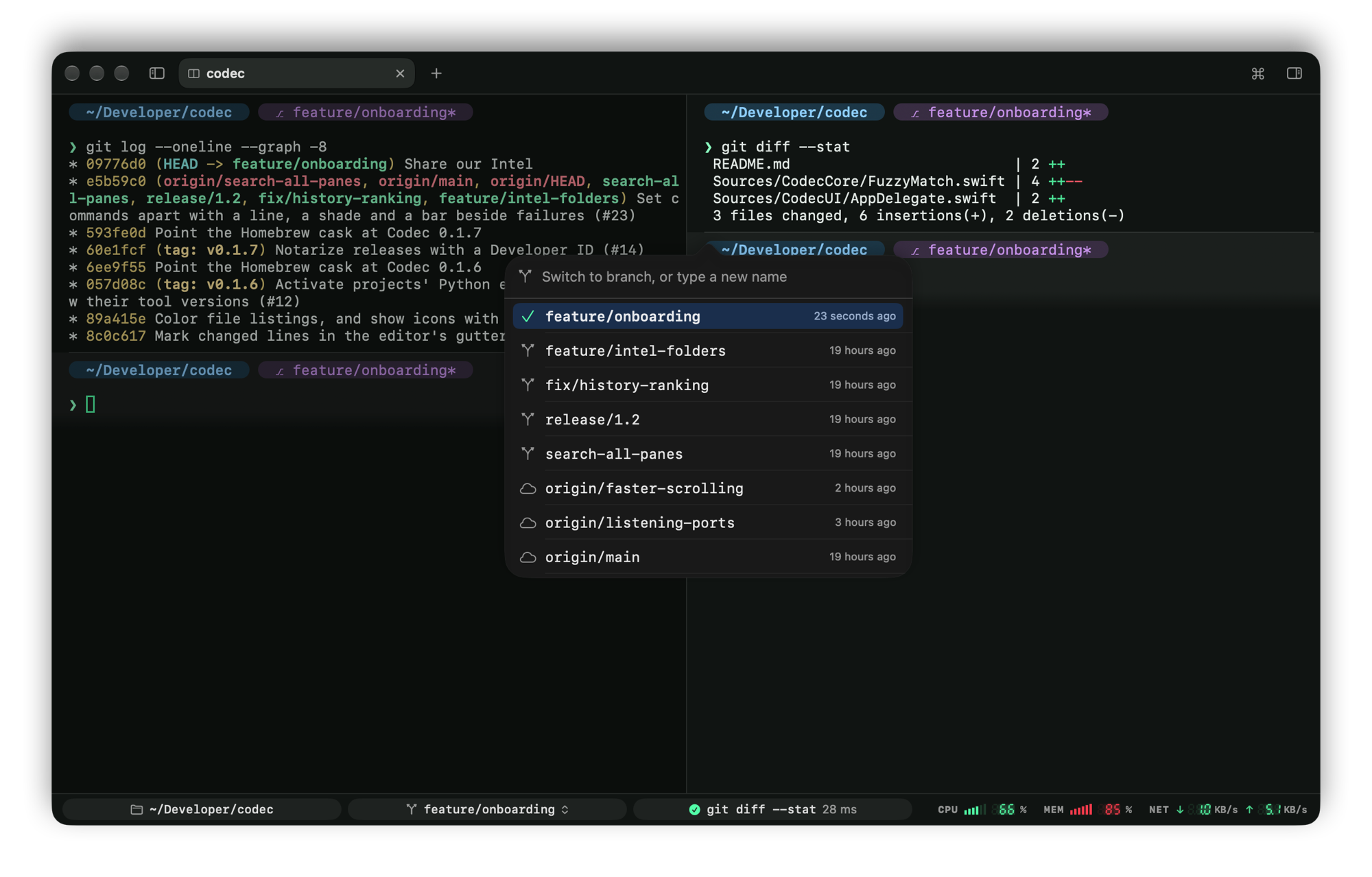
Splits, branches and ports ⇧⌘B
Tabs and nested splits in one window, and a branch switcher one click from the prompt. Quit and reopen, and every pane comes back in its folder, with its commands. The status bar shows the ports a pane's programs listen on, and when npm run dev dies because a port is taken, Codec tells you which pane has it.
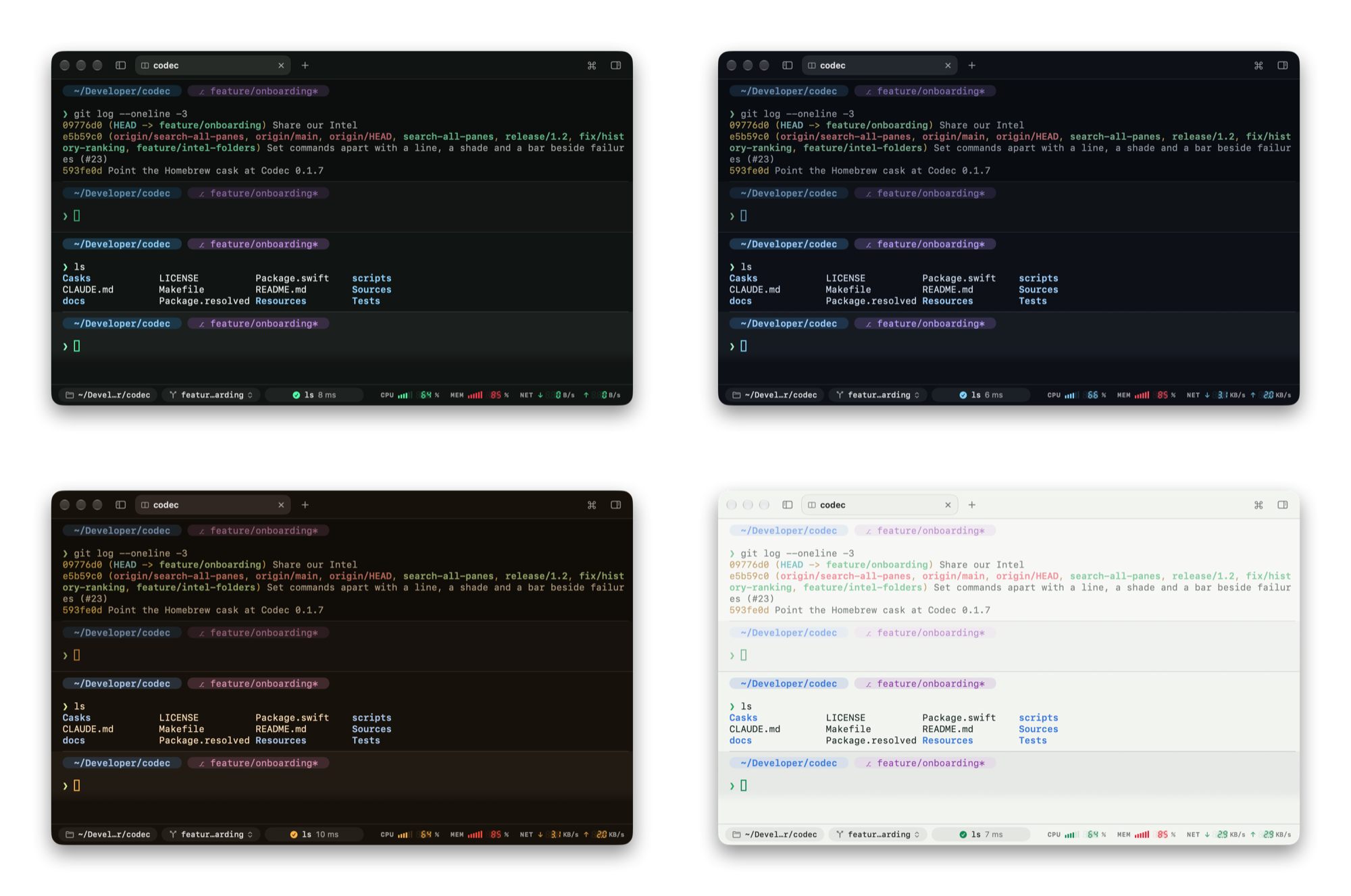
Looks the part ⌘,
Four themes, Codec, Arctic, Amber and Daylight, drawn through everything from the prompt to the file icons and ls. Blur, opacity and optional scanlines. CPU, memory and network meters in the status bar, in bars and seven-segment digits. When a long command finishes in a pane you aren't watching, its tab lights up and you get a notification.
Get Codec
Download
Open the disk image and drag Codec to Applications. It's signed and notarized by Apple, and it updates itself.
Download for macOSHomebrew
brew tap srozen/codec https://github.com/srozen/codec
brew install --cask srozen/codec/codecBuild it
With Xcode 26 or later:
git clone https://github.com/srozen/codec.git
cd codec && make runCodec needs macOS 26 or later, on Apple silicon or Intel. It's free and open source, under the MIT License.